Storage
Unit 5: Storage Devices
Exam Focus: This unit is highly important for understanding how data is stored and retrieved. Expect detailed questions on memory hierarchy, differences between various memory types (RAM vs. ROM, HDD vs. SSD), and the characteristics of primary and secondary storage.
5.1 Introduction to Storage Devices

Storage devices are fundamental components of any computer system, responsible for permanently or temporarily holding data, programs, and processing results. They are essential for a computer to operate, retain information, and execute tasks. Without effective storage, a computer would lose all its data every time it's turned off.
5.2 Memory Hierarchy
Exam Question Alert: Explaining the memory hierarchy is a very common question. Understand the levels, their characteristics, and why this hierarchy exists.
The memory hierarchy in a computer system is a structured arrangement of storage devices, organized in a pyramid-like fashion based on three key characteristics: speed, cost per bit, and capacity. The fundamental goal of this hierarchy is to provide the Central Processing Unit (CPU) with the fastest possible access to data while keeping the overall cost of the memory system manageable. This is achieved by using a combination of different memory technologies, where faster, more expensive, and smaller memory components are placed closer to the CPU, and slower, cheaper, and larger memory components are placed further away.
The principle behind the memory hierarchy is locality of reference, which states that during any phase of program execution, the information accessed by the CPU tends to be concentrated in a relatively small portion of the total available memory. By keeping frequently accessed data in faster, closer memory levels, the average memory access time is significantly reduced, thereby improving the overall performance of the computer system.

- Registers: These are the smallest, fastest, and most expensive memory components. They are located directly inside the CPU and are used to temporarily hold data, instructions, and memory addresses that the CPU is actively processing. Access to registers is almost instantaneous.
- Cache Memory: A small, very fast memory buffer that sits between the CPU and main memory (RAM). It stores copies of data and instructions that the CPU is likely to use next, significantly speeding up data access by reducing the need to access slower main memory. Cache is typically organized into multiple levels (L1, L2, L3).
- Primary Memory (RAM): Also known as Main Memory, this is the computer's working memory. It is fast, volatile (data is lost when power is off), and directly accessible by the CPU. It holds the operating system, application programs, and data currently in use.
- Secondary Storage: This provides a large-capacity, non-volatile (data persists even when power is off) storage solution for all programs and data. It is much slower and cheaper per bit than primary memory. Examples include Hard Disk Drives (HDD), Solid State Drives (SSD), and optical drives.
- Tertiary Storage (Offline Storage): This refers to very large capacity, often removable, storage used for archiving and long-term backups. It is the slowest and cheapest per bit. Examples include magnetic tapes and optical disc libraries.
5.3 Registers
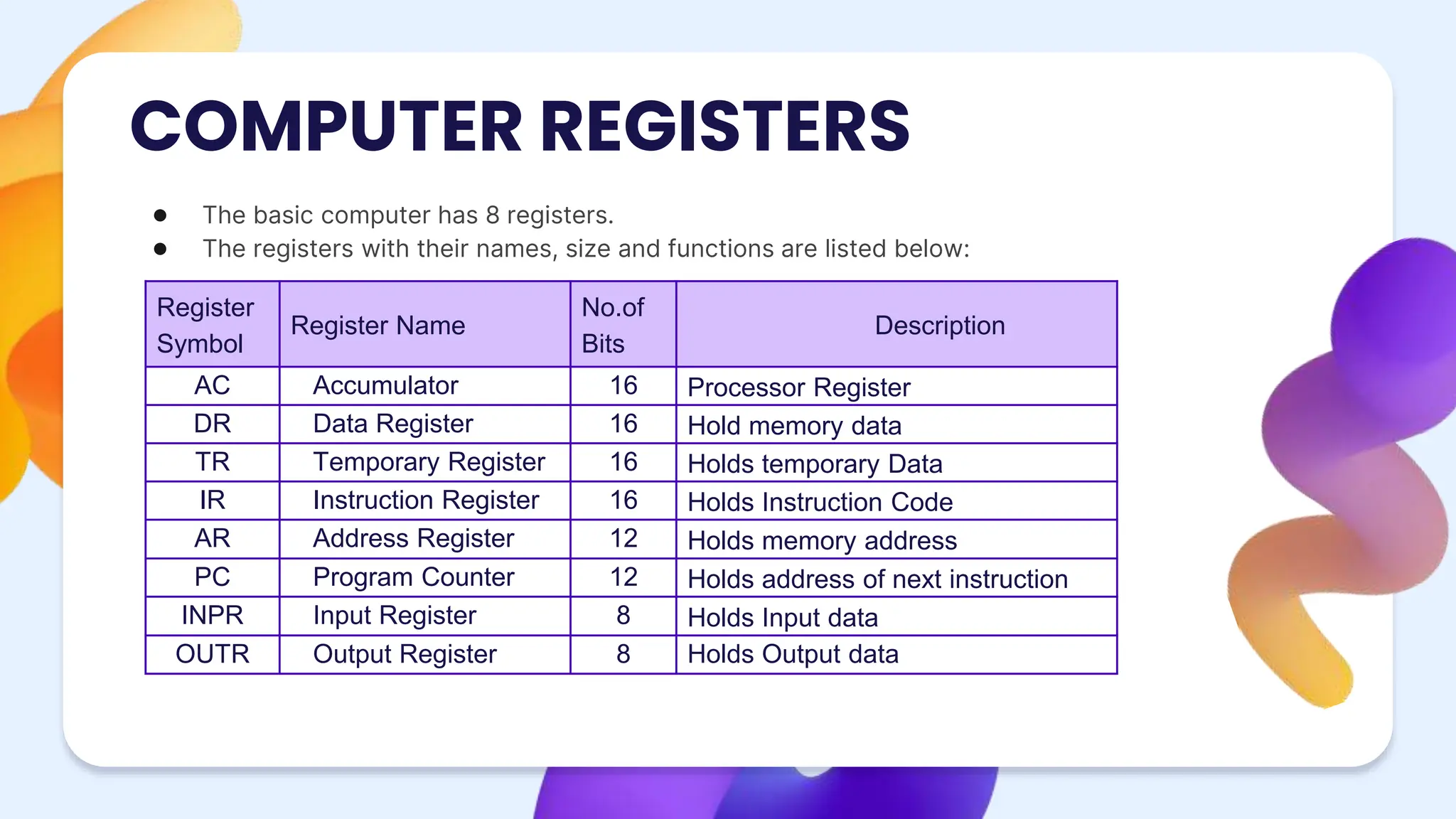
Registers are the smallest, fastest, and most expensive memory components in the computer system. They are tiny storage areas located directly inside the CPU.
- Function: Temporarily hold instructions, memory addresses, and data being actively manipulated by the ALU and Control Unit during the CPU's fetch-decode-execute cycle. They are crucial for rapid instruction execution.
5.4 Cache Memory
Exam Question Alert: The use and function of Cache Memory are often tested. Understand how it speeds up CPU access.
Cache Memory is an extremely fast, small, and expensive type of volatile computer memory that acts as a buffer between the Central Processing Unit (CPU) and the main memory (RAM). Its primary purpose is to speed up data access for the CPU by storing copies of data and instructions that the CPU is most likely to request next. This mechanism is based on the principle of locality of reference, which suggests that programs tend to access data and instructions that are spatially or temporally close to recently accessed ones.
-
Function: When the CPU needs to access data or an
instruction, it first checks the cache.
- Cache Hit: If the requested data is found in the cache, it's called a "cache hit." The data is retrieved very quickly from the cache, significantly reducing the CPU's access time.
- Cache Miss: If the requested data is not found in the cache, it's called a "cache miss." The CPU then retrieves the data from the slower main memory (RAM), and a copy of this data (along with nearby data, anticipating future needs) is simultaneously stored in the cache for faster access if it's needed again soon.
- Levels: Cache memory is typically organized into multiple levels to optimize the trade-off between speed, size, and cost:
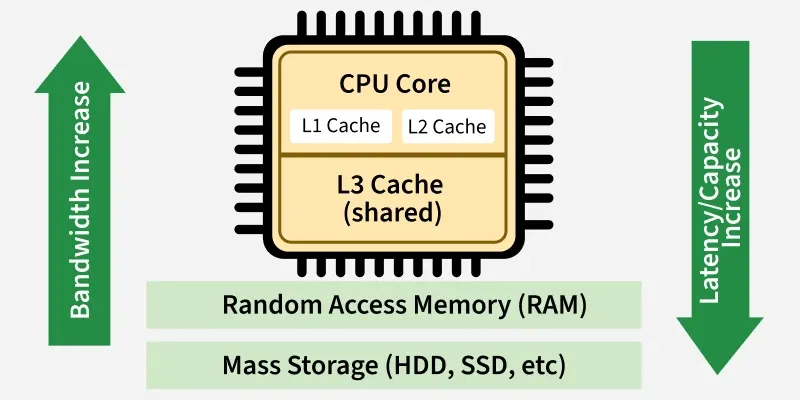
- L1 Cache (Level 1 Cache): This is the smallest and fastest cache, located directly inside the CPU core. It stores the most frequently used instructions and data.
- L2 Cache (Level 2 Cache): Larger and slightly slower than L1 cache, L2 cache can be either dedicated to each CPU core or shared among a few cores. It acts as a secondary buffer for data that isn't found in L1.
- L3 Cache (Level 3 Cache): The largest and slowest of the cache levels, L3 cache is typically shared among all CPU cores on a processor. It serves as a common pool for data that isn't found in L1 or L2, further reducing the need to access main memory.
5.5 Primary Memory (Main Memory)
Exam Question Alert: Differentiating between RAM and ROM, and primary vs. secondary memory, are frequent exam questions.
Primary Memory, also known as Main Memory or internal memory, is the working memory of the computer. It is directly accessible by the Central Processing Unit (CPU) and is crucial for the computer's operation. All programs and data that the CPU needs to process must first be loaded into primary memory. It acts as a temporary storage area for active data and instructions, enabling rapid access for the CPU.
Characteristics of Primary Memory:
- Volatile: Most types of primary memory (like RAM) are volatile, meaning that the data stored in them is lost as soon as the power supply is turned off.
- Direct Access: The CPU can access any memory location directly and quickly, without having to read through preceding data. This is essential for efficient program execution.
- High Speed: Primary memory operates at speeds comparable to the CPU, ensuring that the CPU is not held back by slow data retrieval.
- Limited Capacity: Compared to secondary storage, primary memory has a smaller storage capacity due to its higher cost and speed requirements.
- Expensive: Primary memory is significantly more expensive per bit than secondary storage.
Types of Primary Memory:

-
RAM (Random Access Memory):
- Volatile, Read/Write Memory: RAM is the most common type of primary memory. It is volatile, meaning its contents are lost when the computer is powered down. The CPU can both read data from and write data to RAM.
- Holds Active Data and Programs: It holds the operating system, application programs, and all data that the CPU is currently using or needs to access quickly.
- DRAM (Dynamic RAM): This is the most common type of RAM found in computers. It stores each bit of data in a separate capacitor within an integrated circuit. Because capacitors leak charge, DRAM needs to be constantly refreshed (recharged) every few milliseconds to maintain the data, making it slower and less expensive than SRAM.
- SRAM (Static RAM): SRAM stores data using a flip-flop circuit, which does not require constant refreshing as long as power is supplied. This makes SRAM much faster and more expensive than DRAM. SRAM is typically used for cache memory due to its speed.
-
ROM (Read-Only Memory):
- Non-Volatile, Primarily Read-Only: ROM is non-volatile, meaning its contents are retained even when the power is turned off. As its name suggests, data stored in ROM is typically read-only and cannot be easily modified by the user.
- Stores Crucial Firmware: ROM stores crucial firmware and instructions, such as the BIOS (Basic Input/Output System) or UEFI (Unified Extensible Firmware Interface), which are essential for the computer to start up (boot) and perform basic hardware initialization.
- PROM (Programmable ROM): A blank ROM chip that can be programmed once by the user or manufacturer. Once programmed, its contents cannot be erased.
- EPROM (Erasable Programmable ROM): This type of ROM can be erased by exposing it to strong ultraviolet light and then reprogrammed.
- EEPROM (Electrically Erasable Programmable ROM): EEPROM can be erased and rewritten electrically, byte by byte, without the need for ultraviolet light. Flash memory, commonly used in SSDs and USB drives, is a type of EEPROM.
Difference between RAM and ROM:
| Feature | RAM | ROM |
|---|---|---|
| Volatility | Volatile (data lost without power) | Non-volatile (data retained without power) |
| Usage | Working memory, temporary storage for active programs and data | Stores start-up instructions (firmware) and critical system data |
| Operation | Read and Write operations are frequent and fast | Primarily Read operations; writing is rare and often requires special procedures |
| Cost | More expensive per bit than secondary storage | Generally less expensive than RAM, but more than secondary storage |
Difference between DRAM and SRAM:
| Feature | DRAM (Dynamic RAM) | SRAM (Static RAM) |
|---|---|---|
| Speed | Slower (due to refresh cycles) | Faster (no refresh needed, used for Cache memory) |
| Density | High (more memory in less space, suitable for main memory) | Low (less memory in more space, suitable for cache) |
| Cost | Less Expensive per bit | More Expensive per bit |
| Refresh | Requires constant electrical refresh to retain data | Does not require constant refresh to retain data |
| Power Consumption | Higher (due to refresh cycles) | Lower (when idle) |
5.6 Secondary Memory (Auxiliary Storage)
Exam Question Alert: Expect questions on the characteristics and types of secondary memory, and detailed comparisons like HDD vs. SSD.

Secondary Memory, also known as Auxiliary Storage, provides a permanent, long-term storage solution for all programs and data. Unlike primary memory, it is non-volatile, meaning data persists even when the computer is turned off. Secondary storage devices are essential for storing the operating system, applications, and user files, making them available each time the computer is powered on. They offer significantly higher storage capacity at a lower cost per bit compared to primary memory, though with slower access speeds.
Characteristics of Secondary Memory:
- Non-Volatile: Data stored in secondary memory is permanent and remains intact even after the power supply is removed.
- High Capacity: Secondary storage devices are designed to store vast amounts of data, ranging from gigabytes to terabytes, making them suitable for archiving large collections of files, media, and applications.
- Lower Speed: Accessing data from secondary memory is significantly slower compared to primary memory due to the mechanical components involved (in HDDs) or the nature of flash memory (in SSDs) which is slower than RAM.
- Economical: The cost per unit of storage (e.g., per gigabyte) is much lower for secondary memory than for primary memory, making large-scale data storage affordable.
- Offline Storage Possible: Many secondary storage devices are removable (e.g., USB drives, external HDDs), allowing for offline storage and easy data transfer between computers.
Types of Secondary Memory:
-
Magnetic Storage: These devices use magnetized
material to store data. Data is recorded and retrieved by tiny
read/write heads that magnetize or sense magnetic patterns on a
rotating platter or tape.
- Hard Disk Drives (HDD): The most common form of magnetic storage, HDDs consist of spinning platters coated with magnetic material. Data is stored on these platters in concentric tracks. They offer high capacity but are relatively slow due to mechanical movement.
- Magnetic Tapes: Primarily used for archival storage and large-scale backups. Data is stored sequentially on a long strip of magnetic tape, meaning access is slower as the tape must be wound to the correct position.
-
Optical Storage: Optical storage devices use lasers
to read and write data. Data is stored as microscopic pits and lands
on the surface of a plastic disc, which reflect or scatter a laser
beam differently.
- CD-ROM (Compact Disc Read-Only Memory): An older optical storage format, primarily used for software distribution and audio.
- DVD-ROM (Digital Versatile Disc Read-Only Memory): Offers higher storage capacity than CDs, commonly used for movies and software.
- Blu-ray Discs (BD): The latest optical disc format, providing even higher capacities suitable for high-definition video and large data backups.
-
Solid State Storage: These devices use flash memory
(a type of EEPROM) to store data, containing no moving parts. This
technology provides significant advantages in speed, durability, and
form factor.
- Solid State Drives (SSD): Replace traditional HDDs in many computers due to their superior speed, silent operation, and resistance to physical shock. They store data on interconnected flash memory chips.
- USB Flash Drives: Portable, compact solid-state storage devices commonly used for data transfer and backup.
- SD Cards (Secure Digital Cards): Small, removable flash memory cards used in digital cameras, smartphones, and other portable devices.
- eMMC (embedded MultiMediaCard): A type of flash storage commonly found in smartphones, tablets, and some laptops, acting as a built-in, non-volatile storage solution.
Difference between Hard Disk Drive (HDD) and Solid State Drive (SSD):
| Feature | Hard Disk Drive (HDD) | Solid State Drive (SSD) |
|---|---|---|
| Technology | Magnetic spinning platters and read/write heads | NAND-based flash memory chips |
| Speed | Slower (due to mechanical rotational latency and seek time) | Much Faster (electronic data access, no moving parts) |
| Durability | Sensitive to shocks, drops, and vibrations due to moving parts | Highly durable and resistant to physical shock (no moving parts) |
| Noise | Audible spinning noise and clicking sounds from read/write heads | Silent operation |
| Power Consumption | Higher (requires power to spin platters and move heads) | Lower (more energy-efficient, beneficial for laptops and mobile devices) |
| Cost per GB | Lower | Higher |
| Fragmentation | Can suffer from file fragmentation, impacting performance over time | Not affected by fragmentation in the same way as HDDs |
Direct vs. Sequential Access Magnetic Memory:
- Direct Access (Random Access): This method allows the storage device to directly access any specific piece of data regardless of its physical location on the storage medium. The time taken to access data is largely independent of its position. Hard Disk Drives (HDDs) and Solid State Drives (SSDs) are examples of direct access storage devices, as their read/write heads or electronic controllers can quickly jump to any data block. This is crucial for operating systems and applications that need to access scattered data quickly.
- Sequential Access: In sequential access, data must be read or written in the linear order in which it was stored. To access a piece of data located in the middle or end of the storage medium, all preceding data must be read first. Magnetic Tapes are the classic example of sequential access devices. While cost-effective for large archives, they are very slow for retrieving specific pieces of data, making them unsuitable for active data storage.
Course Code: CMP 116
Credit Hours: 3
This unit provides comprehensive knowledge about computer storage devices, memory hierarchy, and different types of memory.
Important Questions
- Explain Memory Hierarchy. Write about the different types of memory used in computer system. (7)
- Define Permanent Storage. Differentiate between HDD and SSD in details with use cases. (8)
- Define secondary memory along with its types. (7)
- Define the use of Cache Memory. Explain about the any three types of primary memory with their uses in computer system. (8)
- Explain how SSD is more efficient compared to other secondary storage media like hard disk. (7)
- Write short notes on: (Any two)
- Difference between RAM and ROM
- Difference between HDD and SSD
- Direct and sequential access magnetic memory